Mini Lessons
Advanced Claude Code Workflows
What This Is
An interactive lesson from Claire Vo’s interview with John Lindquist (egghead.io) on How I AI, covering advanced techniques senior engineers use to get production-quality results from Claude Code.
Source: How I AI: Advanced Claude Code techniques with John Lindquist
What You’ll Learn
- Mermaid diagrams for context preloading - make Claude understand your codebase instantly
- Stop hooks that auto-fix errors - Claude checks its own work before saying “done”
- The “infinite junior engineer” mindset - think about automation as prep work, not code writing
Watch the Source
Get Started
This lesson runs in the Claude Desktop app. Open Claude, start a new project, and paste this prompt:
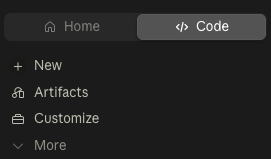
In the Claude Desktop app, click the Code tab (upper left), start a new project, and paste:
Once the lesson materials are installed, type /start-lesson.
Prefer the terminal? Open Claude Code in a new folder and paste the same prompt. See the Claude Code CLI guide for setup help.
What’s Covered
1. The Context Loading Problem
Every time you start Claude Code on a project, it has no memory. Ask “explain the authentication flow” and Claude has to search through 50+ files, read 10-15 of them, and piece together the answer. This happens every single session.
John Lindquist’s insight: What if Claude already knew your architecture before you asked?
2. Mermaid Diagrams
Mermaid diagrams are a text format that compresses your app’s logic into something AI can consume instantly. They look like gibberish to humans but Claude reads them perfectly.
For a real project, you’d have diagrams for auth flows, database operations, API routes - everything that explains how your code connects. When Claude starts with these preloaded, it doesn’t need to explore. It just knows.
3. The —append-system-prompt Flag
Here’s how you load diagrams into Claude at startup:
claude --append-system-prompt "$(cat .ai/diagrams/*.md)"This flag adds text to Claude’s base instructions before you even start chatting. The result: Claude starts with your entire architecture already in memory.
4. Terminal Aliases
Typing that command every time is tedious. The solution: shell aliases.
alias cdi="claude --append-system-prompt \"\$(cat .ai/diagrams/*.md)\""
alias x="claude --dangerously-skip-permissions"
alias h="claude --model claude-haiku-4-5-20251001"
Now you type cdi instead of the full command. You add these to your ~/.zshrc file and they’re available in every terminal session.
5. Stop Hooks
Here’s a frustrating pattern: Claude finishes a task, says “Done!”, but there are TypeScript errors. You paste them back. Claude fixes them, says “Done!” again. More errors. Repeat.
Stop hooks solve this. A stop hook runs every time Claude finishes a response - right before it waits for your input. You configure it to run quality checks (typecheck, lint, tests). If the check fails, the hook sends errors back to Claude automatically. Claude fixes them and tries again.
This loops until all checks pass. You never copy-paste errors again.
6. Hook Configuration
Stop hooks are configured in .claude/settings.local.json:
{
  "hooks": {
    "Stop": [
      {
        "hooks": [
          {
            "type": "command",
            "command": "npm run typecheck 2>&1 || echo '{\"decision\":\"block\",\"reason\":\"TypeScript errors found\"}'"
          }
        ]
      }
    ]
  }
}
The pattern is simple: run a check, if it fails output JSON with "decision": "block" and a reason. Claude sees this and fixes the issue.
7. The “Infinite Junior Engineer” Mindset
Here’s a powerful way to think about AI automation:
Imagine you had infinite junior engineers - always available, no meetings, happy to do tedious work. What would you have them do?
Most people think “write code faster.” But the real answer is all the stuff AROUND the code:
- Trace who wrote this code and why
- Find the history of every file involved
- Write a risk assessment before touching anything
- Generate a tech spec for review
- Document everything after
- Summarize the PR for reviewers
All of that is a prompt. All of it can be automated. The AI isn’t replacing your judgment - it’s doing the boring prep work so you can focus on decisions that matter.
8. Handling Drift
Sometimes Claude gets confused and starts doing the wrong thing. You try to correct it. It gets more confused.
John’s approach: Don’t fight it. Export the conversation, paste it into a DIFFERENT model (ChatGPT, Gemini), and ask “Where did this go wrong?” The second model isn’t stuck in the same confusion - it can see the drift objectively.
Think of it like asking a colleague to review a confusing email thread. Fresh eyes see what you can’t.
By the End
You’ll have:
- A sample mermaid diagram you can adapt for your projects
- A working stop hook configured in the lesson folder
- Custom aliases saved to a file
- The “infinite junior engineer” framework for thinking about automation
Get the lesson: scroll up to Get Started - one pasted prompt installs everything.